Adding a Figure, Table, and Citation in Quarto
Enrich a short technical document with a figure, a table, a citation, and cross-references
This lab walks through adding the apparatus of a technical document — a figure, a table, and a citation, tied together with automatic cross-references — to a short Quarto .qmd. It is the practical companion to Figures, Tables, and References, the short conceptual reading for Week 4.
You should be comfortable with the Week 2–3 workflow: writing prose, math, and structured statements in a .qmd and rendering to PDF. Week 4 adds document parts, not a new toolchain — you stay in Quarto, with no raw .tex, no \documentclass, and no bibliography package to install. Quarto handles all of it.
What you’ll have at the end
- A new
hw04/subfolder in yourmath-software-portfolio/containing four files: a.qmdsource, a rendered.pdf, areferences.bib, and one image file used as your figure. - A short document that builds on your Week 3 structured writing and adds a captioned figure, a captioned table, a citation with an auto-generated References section, and at least one automatic cross-reference.
- A short AI Use Note in the standard three-line Tool / Purpose / Verification format (only required if you used AI assistance).
The exact assignment prompt, submission details, and the Week 4 checkpoint sign-up live in the Assignments/LMS space.
1. Create and open the Week 4 portfolio folder
Inside math-software-portfolio/, create hw04/ next to your existing hw01/, hw02/, and hw03/. From VS Code: File → Open Folder… and pick hw04/. Opening the folder (not a single file) keeps the Quarto extension, the file explorer, and the terminal all working in the same place — which matters this week, because your document, image, and .bib file all live together in this folder.
2. Start from a .qmd template
Create week04-enriched.qmd (a demo name for the walkthrough; the graded file name lives in the Assignments/LMS space). Paste this starter:
---
title: "Week 4 — A short enriched technical document"
author: "YOUR NAME"
bibliography: references.bib
format:
  pdf: default
---

# Setup

A short paragraph of structured writing carried forward from Week 3 —
a claim and a brief justification, or a short worked exposition.

# Figure and table

# References
The new YAML line is bibliography: references.bib — it tells Quarto where your sources live (you will create that file in step 7). The # References heading is where the reference list will appear; Quarto fills it in automatically.
3. Add an included-image figure
An image goes in your folder and is included with a caption and a label. Here is a live example — a small right-triangle diagram that ships with this lab:
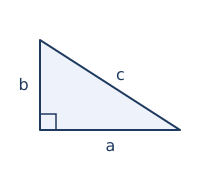
As Figure 1 shows, an included image renders with its caption and an automatic figure number. That figure came from a single line of Markdown. In your own document you put your image file in hw04/ and adapt the same syntax:
{#fig-setup}- The text in
[ ... ]is the caption. figure.pngis the image file name — it must match your file exactly (including capitalization and extension).{#fig-setup}is the label. A figure label must start withfig-.
Use your own image. The triangle above is just a demo. Replace it with a diagram, sketch, or photo you made; an image your instructor provides; or an openly licensed image with attribution in the caption. (No code-generated plots this week — those come with R later.)
Render (see step 8) and confirm the image appears with its caption.
4. Refer to the figure with a cross-reference
In your prose, point at the figure with @fig-setup:
The configuration is shown in @fig-setup.When you render, @fig-setup becomes “Figure 1” with a link. Never write “the figure below” — let the cross-reference number it for you.
5. Add a small captioned table
A Quarto table is a Markdown table with a caption line and a label underneath it:
| Quantity | Value |
|----------|-------|
| Width    | 3     |
| Height   | 4     |

: Measured quantities. {#tbl-data}- The
: ...line is the caption. {#tbl-data}is the label. A table label must start withtbl-.
Keep the table small and readable — a few rows and columns. A table that overflows the page is a table to trim.
6. Refer to the table with a cross-reference
As with the figure, refer to the table by label:
@tbl-data lists the measured quantities.This renders as “Table 1.” Here is a real, rendered example of a captioned, cross-referenced table — Table 1 summarizes the three Week 4 apparatus elements:
| Element | Needs a caption? | Cross-reference prefix |
|---|---|---|
| Figure | Yes | @fig- |
| Table | Yes | @tbl- |
| Citation | Reference list | [@key] |
Notice that the sentence above shows “Table 1” where it says Table 1 — the number is filled in for you.
7. Create references.bib and cite a source
Create a file named references.bib in hw04/. Add one real source. A BibTeX entry looks like this (use the details of an actual source you want to cite):
@article{eulerbridges,
  author  = {Euler, Leonhard},
  title   = {Solutio problematis ad geometriam situs pertinentis},
  journal = {Commentarii Academiae Scientiarum Petropolitanae},
  year    = {1741},
  volume  = {8},
  pages   = {128--140}
}eulerbridgesis the key — a short name you choose.- The fields (
author,title,journal,year, …) describe the source.
Then cite it in your prose with the key in square brackets:
This problem dates back to early graph theory [@eulerbridges].When you render, [@eulerbridges] becomes an in-text citation and the full reference appears automatically under your References heading. You write the source once; Quarto formats and lists it.
8. Render to PDF
Render exactly as in earlier weeks. Either method works:
Preferred — Quarto: Preview. Open the file, then press
Ctrl/Cmd + Shift + Pand run Quarto: Preview, or pressCtrl/Cmd + Shift + K. (If the Quarto extension shows a Preview button in the editor toolbar, that works too.)Always works — terminal. Open VS Code’s integrated terminal (View → Terminal), make sure it is in the
hw04/folder, then run:quarto render week04-enriched.qmd
If VS Code shows the file as Plain Text in the lower-right corner, click it and choose Quarto (or Markdown), and confirm the Quarto extension is installed. If the terminal says “No valid input files passed to render,” the terminal is in the wrong folder or the filename is misspelled.
9. Inspect the rendered PDF
Open the PDF and check the apparatus, one item at a time:
- Figure. The image appears (not a broken-image box) and has its caption.
- Table. It is readable, captioned, and does not overflow the page.
- Cross-references resolve. Every
@fig-/@tbl-shows a number — noFigure ??orTable ??anywhere. - Citation renders. The in-text
[@key]shows a citation marker. - References section appears. A reference list is at the end, listing your source.
- The source is real. This is the one no tool checks for you — confirm the source you cited actually exists.
Fix anything that is off in the source, then re-render.
Common problems
Skim this before you start; come back when something breaks.
Figure ?? or Table ?? in the PDF
- Symptom. A cross-reference shows
??instead of a number. - Fix. The reference and the label do not match.
@fig-setupneeds a figure labeled{#fig-setup};@tbl-dataneeds a table labeled{#tbl-data}. Make them identical, and rememberfig-/tbl-prefixes are required.
The image does not appear
- Symptom. A broken-image box, or nothing where the figure should be.
- Fix. Check the file name and location. The image must be in the
hw04/folder and the name inmust match exactly, including capitalization and extension.
No References section, or the citation shows as [@key]
- Symptom. The reference list is missing, or the literal
[@key]appears in the PDF. - Fix. Confirm
bibliography: references.bibis in your YAML, thatreferences.bibis in the same folder, and that the key in[@key]matches a key in the.bibfile exactly.
The .bib entry breaks the render
- Symptom. The render errors, or the reference silently does not appear.
- Fix. Check the entry for a missing comma between fields or an unmatched
{ }. One malformed field can drop the whole entry.
The table overflows the page
- Symptom. A wide table runs off the edge of the PDF.
- Fix. Trim columns or shorten cell contents. Week 4 tables should be small.
A fabricated (AI-invented) citation
- Symptom. You asked an AI assistant for a reference, it gave you a perfectly formatted entry, and the source does not exist.
- Fix. Verify every source is real: find the actual paper or book, confirm the author and title, and confirm a DOI or link resolves. Record what you checked in your AI Use Note’s Verification line. A fake citation is the most serious Week 4 mistake.
Prepare for the Week 4 checkpoint
Week 4 includes a required LaTeX checkpoint conference — a short conversation to confirm your skills are working and to help you pick a realistic LaTeX Project (a short replication of an open-access mathematics paper or excerpt). Come with one candidate direction:
- a candidate open-access paper, excerpt, or topic;
- one sentence on why it is a reasonable scope for a short paper;
- a note on what part of it you might reproduce.
Conference sign-up and timing are in the Assignments/LMS space.
What this prepares you to do
When you finish this lab you should be able to:
- include an image as a captioned, labeled figure in a Quarto document;
- build a small captioned, labeled table;
- refer to figures and tables by automatic cross-reference, not “the figure below”;
- keep sources in a
references.bibfile, cite one with[@key], and produce an auto-generated References section; - inspect a rendered PDF for apparatus problems — broken images, unresolved
??cross-references, a missing reference list; - use AI for syntax, captions, and
.bibdrafting while verifying that every cited source is real.
The Week 4 assignment in the course LMS uses exactly this workflow. The course LMS holds the exact prompt, the file-naming convention, the submission area, and the checkpoint sign-up.